
Type a class test (Beginner level)
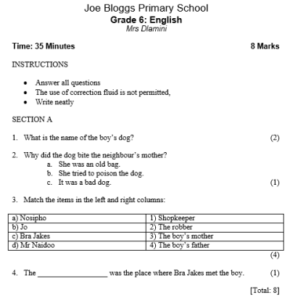 As an educator you need to type out a test paper. Your test will look attractive and professional, and will be easy to read. You could also save tests and re-use parts of them at a later stage. You will use Microsoft Word to achieve this.

By the end of this task you could achieve the following outcomes:
- Change the way your text looks
- Change the position of text on the page
- Use automatic numbering
- Use tabs
- Insert a simple table
- Insert a header or footer
- Insert page numbering
- Conduct a spell check
Create your own class test – one which you will find useful. Alternatively, follow this example. To do so you would typically work through the following steps:
| 1. | Start Microsoft Word: You will use Microsoft Word to create your test or exam. See how » |
| 2. | Type the name of your school. On the next two lines, type the Grade and Learning Area, and your name. |
| 3. | Centre text: Place the heading in the centre of the page. See how » |
| 4. | Format text: Select a font of your choice, and increase its size for the heading. See how » |
| 5. | Save the file: Remember to save your work regularly. See how » |
| 6. | Type the Instructions: Make sure it is on the left side of the page. Then insert a bullet list under it with the instructions you would like to give your learners (see the example). See how » |
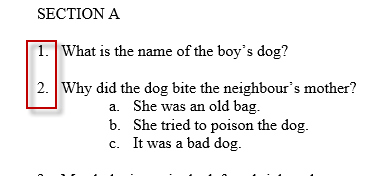
| 7. | Create a numbered list: Activate the numbered list to label this question as “1”. Type the first question. See how » |
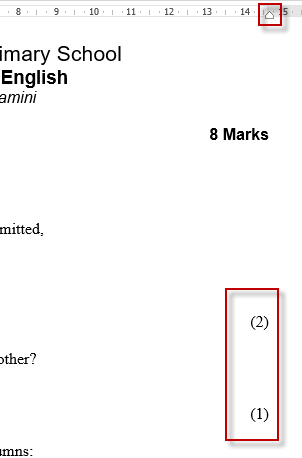
| 8. | Insert a right tab: Put the mark allocation on the right-hand side of the page. Insert a right-tab, and type in your mark allocation. See how » |
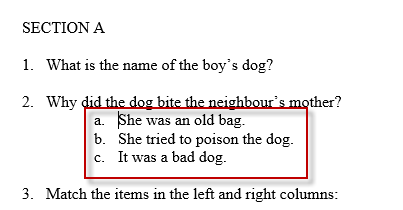
| 9. | Create a multiple-choice question: On a new line, which should be labelled “2” automatically, type another question, and then insert choices underneath using sub-bullets. |
| 10. | Insert a table: Create matching columns for question 3. See how » |
| 11. | Continue typing the test to suit your needs |
| 12. | Conduct a spell check: This will assist you to correct spelling and typing errors if you have typed in English. See how » |
| 13. | Save the file: Save the file after spell-checking and before printing. See how » |
| 14. | Print the document. See how » |
If the tip sheets do not help you, seek support in the forum:
Related scenarios (will be linked)
» Create a marksheet
» Create an advanced markbook
» Send a good news note to parents

Quiz – Type a class test

Upload your final product for feedback.
