
Mail merge a letter to sponsors (Advanced level)
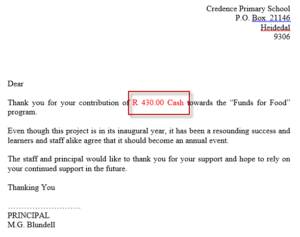
As an educator or school management team member, you may need to send letters to a large number of persons, where most of the content is the same, but some items (such as names and addresses) are unique to each recipient. For example, you can send letters to award recipients, where the congratulation is the same for everyone, but each recipient has a unique name and receives a different award. You will use Microsoft Word to mail merge a letter.

By the end of this task you could achieve the following outcomes:
- Type the standard letter
- Type the details of the recipients that are unique to each recipient
- Merge the letter and the details for each recipient
- Spell check the letter
- Print the merged letters or a selection of letters
Merge your own letter – one which you will find useful. Alternatively, follow this example. To do so you would typically work through the following steps:
| 1. | Start Microsoft Word. See how » |
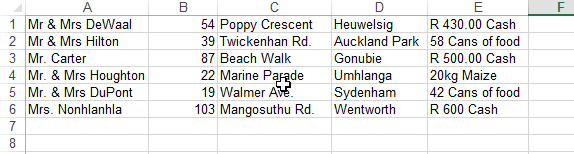
| 2. | Data table – Insert a table: In a new document type the data that is unique to each letter – use a table. See how » |
| 3. | Save the data table. See how » |
| 4. | Open the Mail Merge Wizard: You will use a “wizard” that will take you step by step through the process. See how » |
| 5. | Link to a data table: In step 2 of the wizard you will use the data table that you have created in task 2 above. See how » |
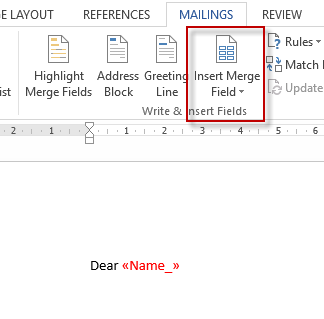
| 6. | Write a letter, merging the data: In step 3 of the wizard you will type the basic letter and insert the unique fields from the data table. See how » |
| 7. | Spell check the merged letter: It is wise to spell check before saving and printing a document. See how » |
| 8. | Save the merged letter. See how » |
| 9. | Print the merged letters. See how » |
| 10. | Exit Microsoft Word. See how » |
If the tip sheets do not help you, seek support in the forum:

Quiz – Mail merge a letter

Upload your final product for feedback.
