
Access two windows at the same time (Beginner level)

As an educator you may at times wish that you could work with two documents side-by-side. For instance, if you want to compare two student assignments side-by-side you can use this feature in Microsoft Word. If, during your preparation of a worksheet, you wish to see a website side-by-side with your worksheet document, which you are preparing using Microsoft Word, or you wish to see data in Microsoft Excel side-by-side with a report that you are writing in Microsoft Excel, you can use the Windows Snap feature to do this.
By the end of this task you could achieve the following outcomes:
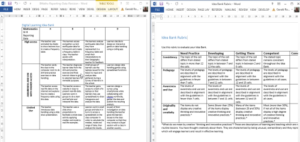
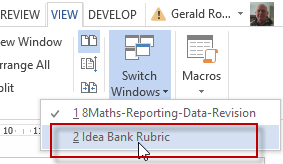
- View two Microsoft Word documents side-side-side
- View two screens from different applications side-by-side
Work in your own context while writing a report or creating a worksheet. To view documents or screen side-by-side you would typically work through the following steps:
| 1. | Create a worksheet. See how » |
| 2. | Start Microsoft Word. For example, you want to compare two student documents. See how » |
| 3. | View two Microsoft Word documents side-by-side. See how » |
| 4. | Start Microsoft Excel. For example, you want to consult data in a spreadsheet while writing a report. See how » |
| 5. | View two applications side-by-side. See how » |
If the tip sheets do not help you, seek support in the forum:


Quiz – Multitasking when using resources



Upload your final product for feedback.
